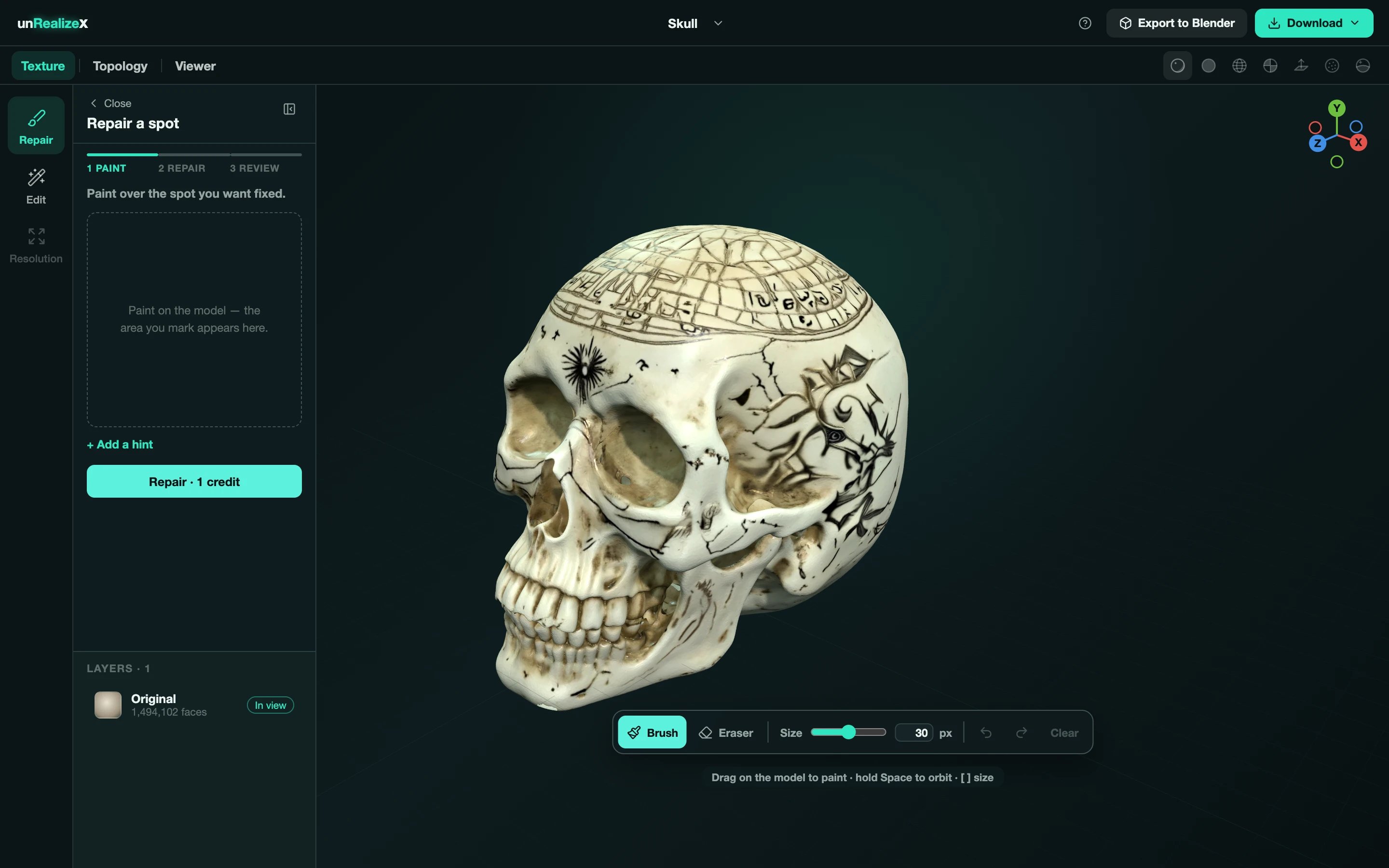
Under a minute, 1 credit per repair. Saving creates a new version; your original stays.
1
Texture → Repair
Open the model in Space, click the Texture tab, then Repair. The panel is Repair a spot, with three stages: Paint, Repair, Review.
2
Orbit to the problem, then paint over it
Drag on the model with the Brush. Hold Space to orbit while painting, use [ and ] for the brush size, and the Eraser or Clear to undo. The striped area is what will be redone; it also shows in the Marked area preview.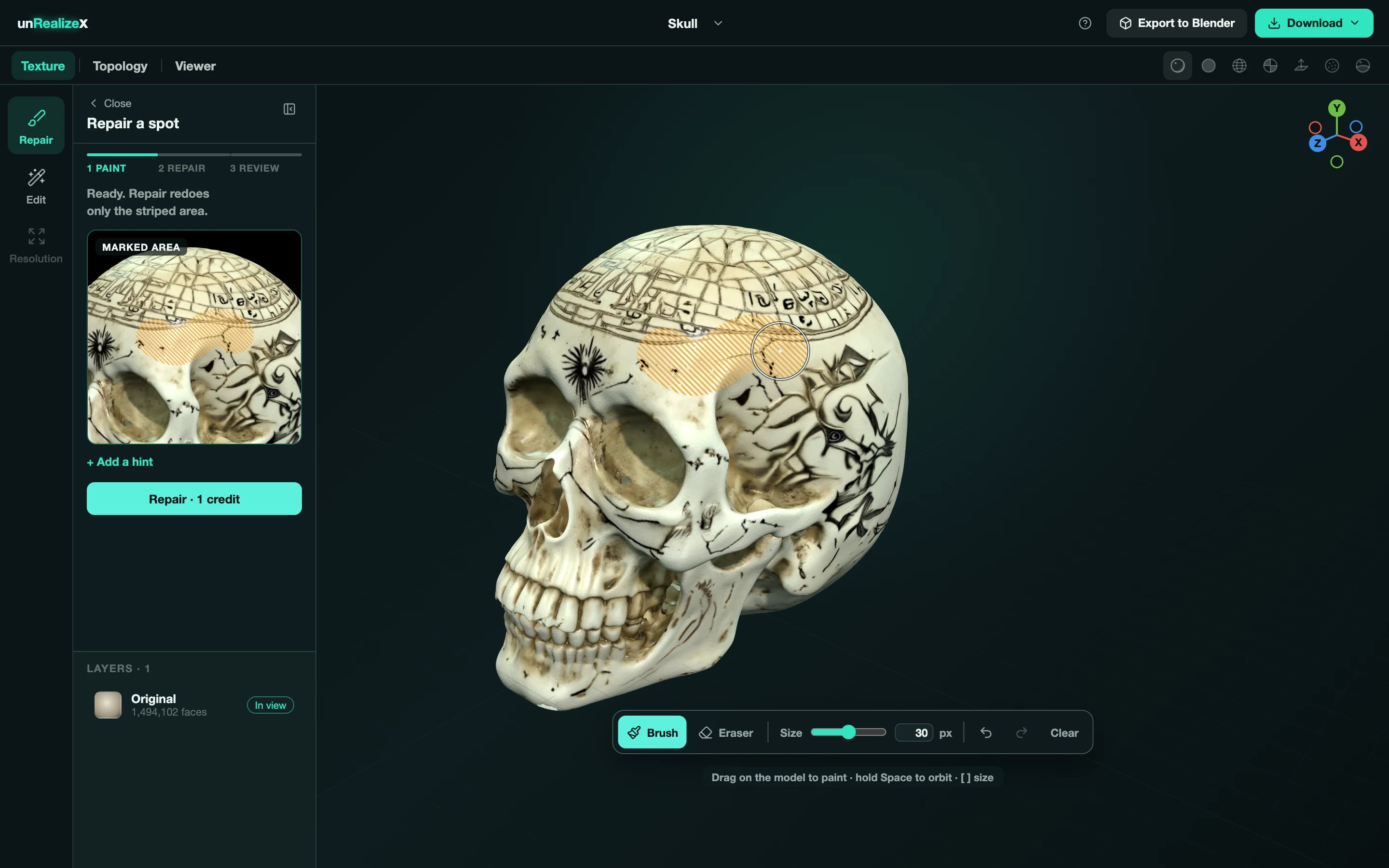
3
Add a hint, if it helps
+ Add a hint lets you say what the spot should look like, for example plain bone, no lines.
4
Repair · 1 credit
The panel shows Sending, Preparing, Repainting, Checking. Usually 30 to 60 seconds.
5
Review
Two results come back. Pick Option 1 or Option 2, flip Before and After, then Apply patch. Try another runs it again; Back to painting changes the area.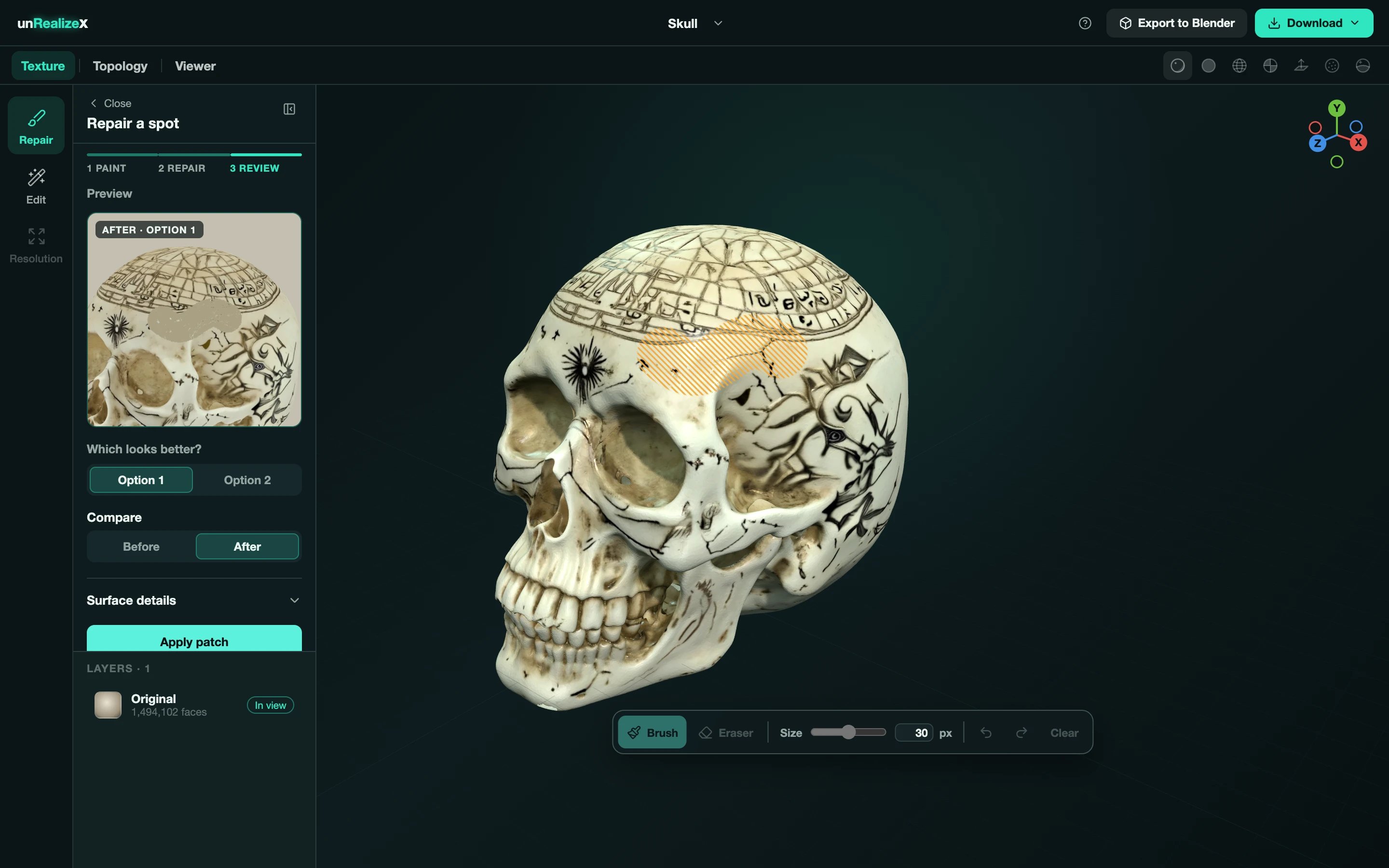
6
Save changes
Each applied patch is a layer. Paint another spot, or click Save changes to write a new version.