> ## Documentation Index
> Fetch the complete documentation index at: https://help.unrealizex.com/llms.txt
> Use this file to discover all available pages before exploring further.
# Send to Blender
> Drop a model straight into your open Blender scene
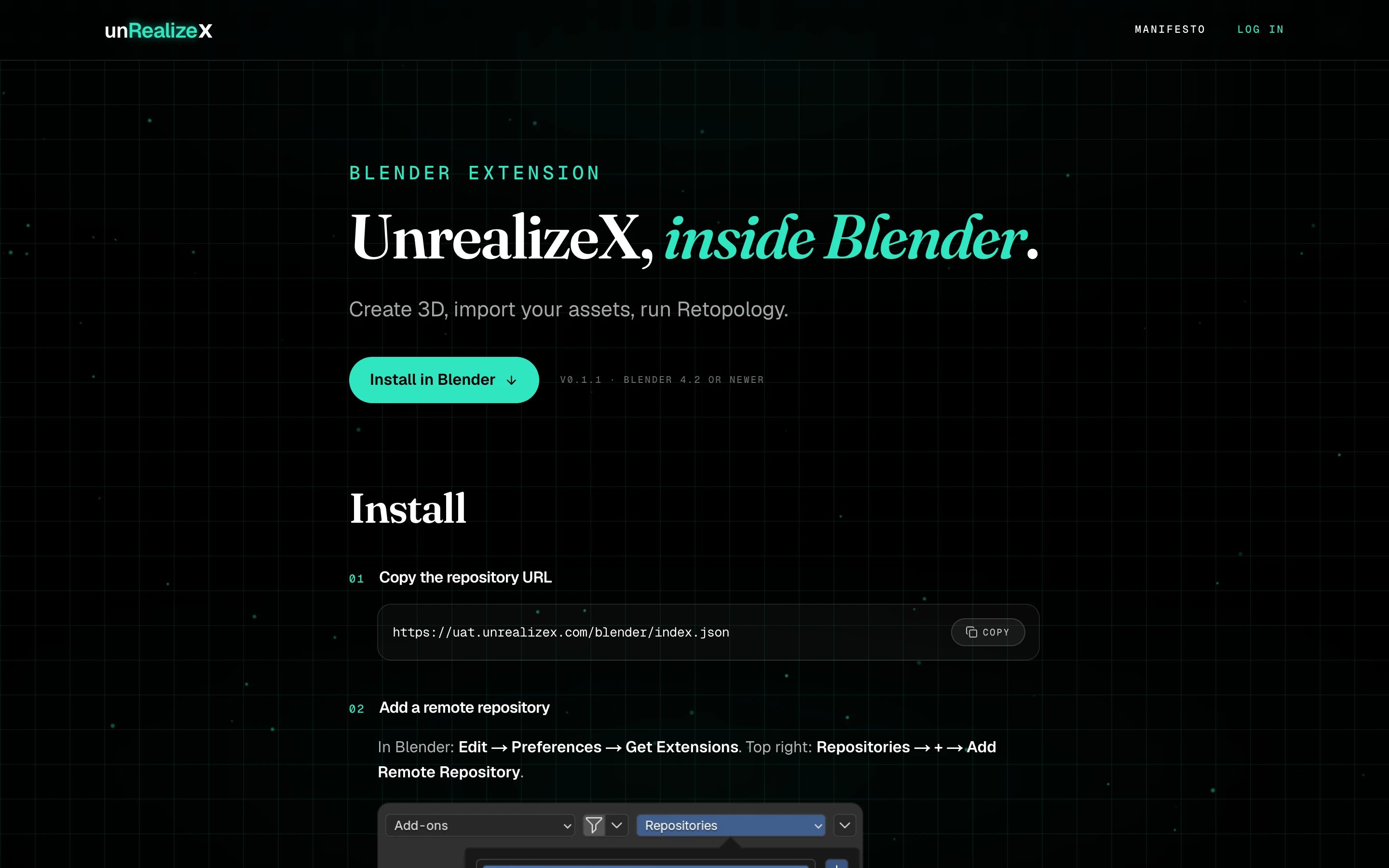 The UnrealizeX extension for Blender 4.2 and newer lets you generate, import and retopologize assets without leaving Blender. **Send to Blender** on the website pushes any of your models into whatever scene you have open.
## Install the extension once
`https://unrealizex.com/blender/index.json`. The [Blender DCC page](https://unrealizex.com/blender/) has a copy button.
In Blender: **Edit → Preferences → Get Extensions**. Top right: **Repositories → + → Add Remote Repository**.
The UnrealizeX extension for Blender 4.2 and newer lets you generate, import and retopologize assets without leaving Blender. **Send to Blender** on the website pushes any of your models into whatever scene you have open.
## Install the extension once
`https://unrealizex.com/blender/index.json`. The [Blender DCC page](https://unrealizex.com/blender/) has a copy button.
In Blender: **Edit → Preferences → Get Extensions**. Top right: **Repositories → + → Add Remote Repository**.
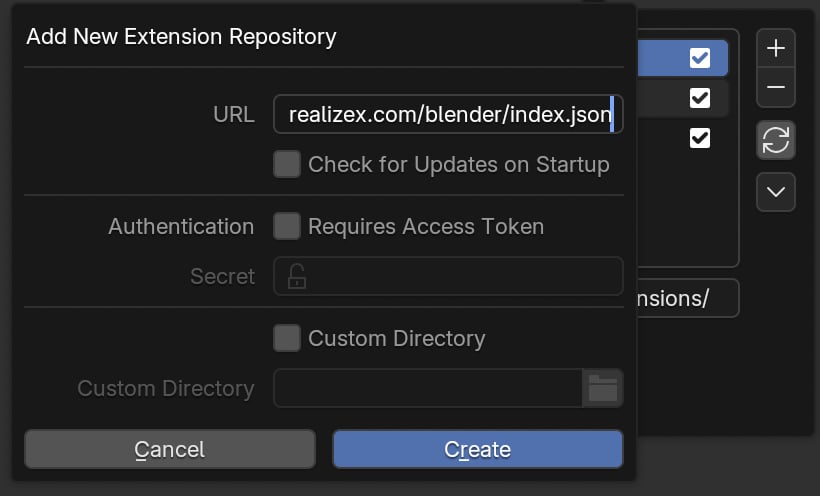
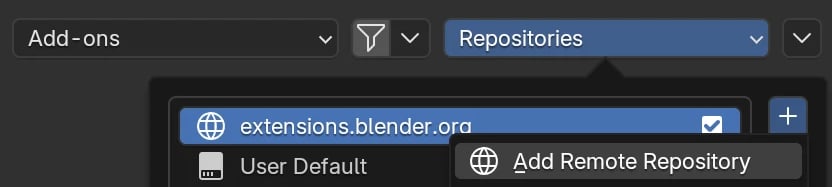 Paste it into **URL** and click **Create**.
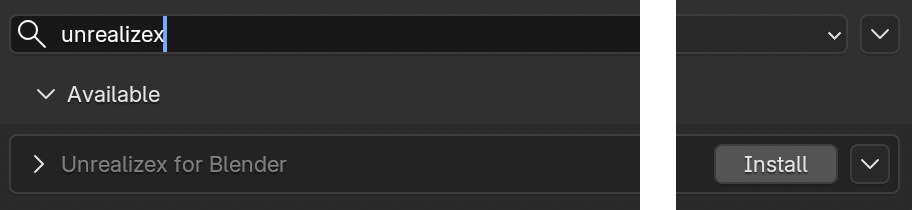
 Search **unrealizex** and click **Install**. Blender offers updates from then on.
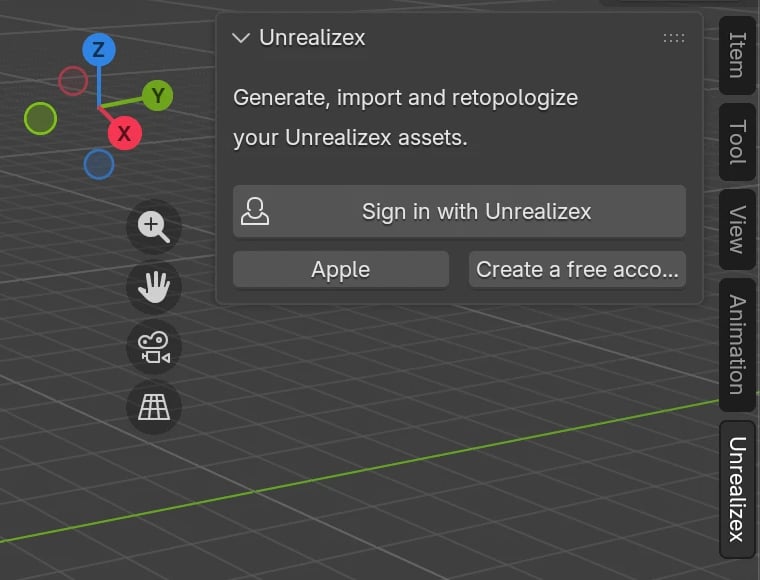
 In the 3D viewport press **N**, open the **Unrealizex** tab, and click **Sign in with Unrealizex**. Your browser opens; use your normal account.
 ## Send a model
With Blender open and signed in, hover a finished card in **My spins** and click **Send to Blender**. The model lands at the 3D cursor in your open scene, textures included, in a few seconds. In Space, the **Export to Blender** button does the same for the model you have open.
## Inside Blender you can also
## Send a model
With Blender open and signed in, hover a finished card in **My spins** and click **Send to Blender**. The model lands at the 3D cursor in your open scene, textures included, in a few seconds. In Space, the **Export to Blender** button does the same for the model you have open.
## Inside Blender you can also
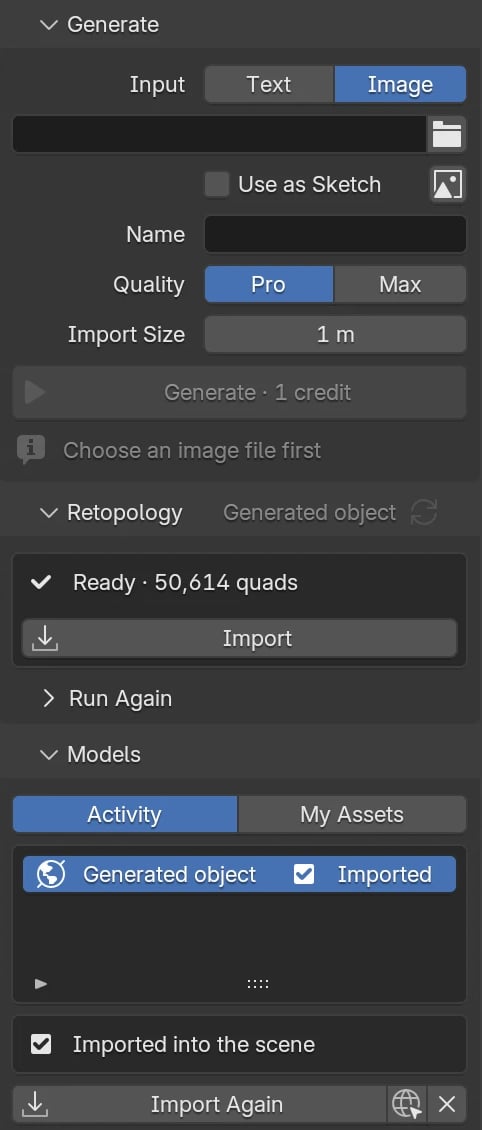 * **Generate** a model from a photo or a sketch. 1 credit. It imports at your 3D cursor when ready.
* **Import** anything from **My Assets**, everything you made on the website.
* **Run Retopology** on an imported model. The quad mesh with baked textures imports next to the original.
**Preferences → System → Network → Allow Online Access** must be on.
Allow it. Blender only listens on your own computer to finish the sign-in.
Click the copy icon next to **Details** and email it to [support@unrealizex.com](mailto:support@unrealizex.com).
* **Generate** a model from a photo or a sketch. 1 credit. It imports at your 3D cursor when ready.
* **Import** anything from **My Assets**, everything you made on the website.
* **Run Retopology** on an imported model. The quad mesh with baked textures imports next to the original.
**Preferences → System → Network → Allow Online Access** must be on.
Allow it. Blender only listens on your own computer to finish the sign-in.
Click the copy icon next to **Details** and email it to [support@unrealizex.com](mailto:support@unrealizex.com).