> ## Documentation Index
> Fetch the complete documentation index at: https://help.unrealizex.com/llms.txt
> Use this file to discover all available pages before exploring further.
# Repair a texture spot
> Paint over a smudge, seam or baked-in shadow and have only that spot redone
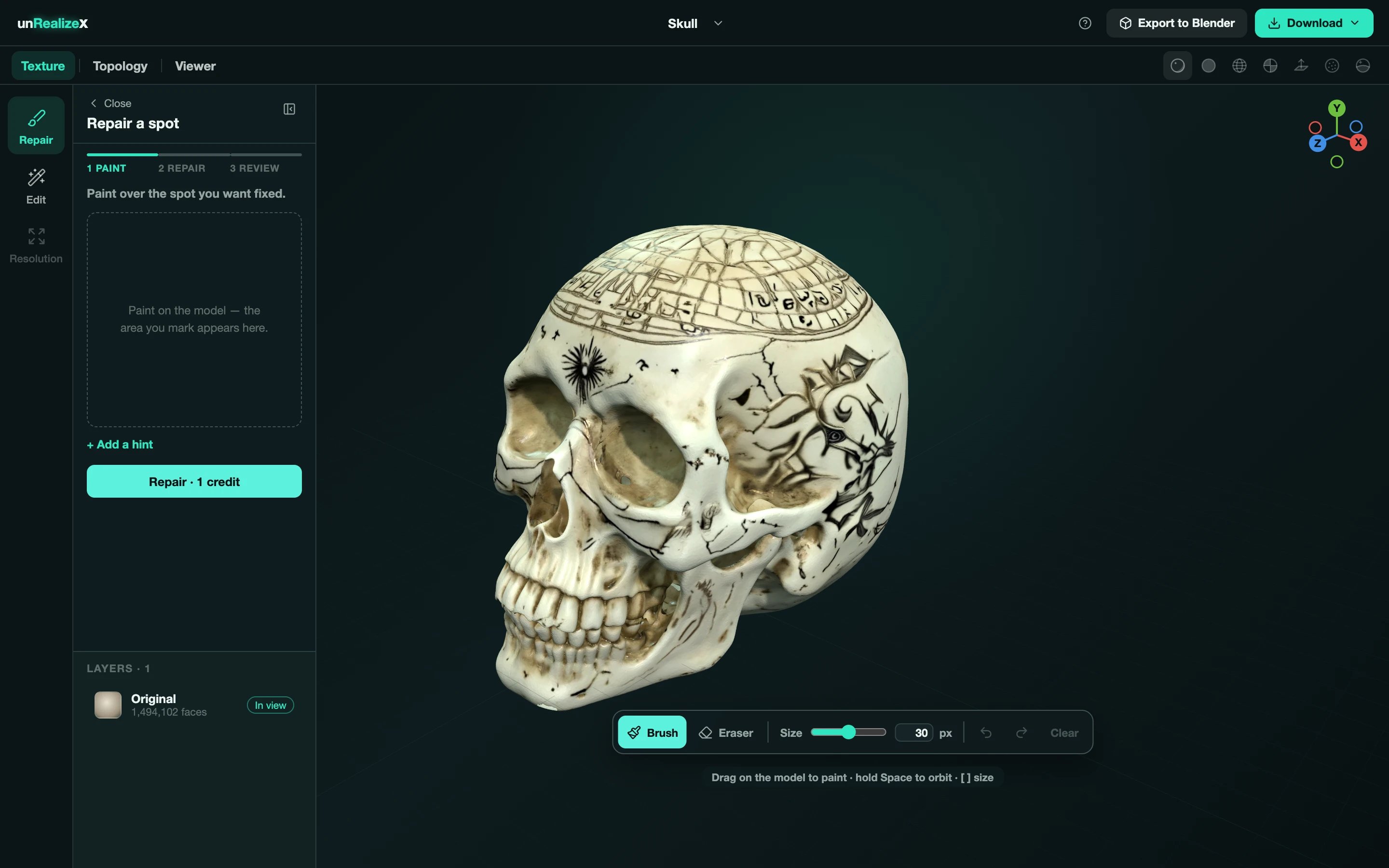 **Repair** fixes one area of the texture and leaves everything else untouched. You mark the spot, the tool repaints it to match its surroundings, you pick the better of two results, and save.
Under a minute, 1 credit per repair. Saving creates a new version; your original stays.
Open the model in Space, click the **Texture** tab, then **Repair**. The panel is **Repair a spot**, with three stages: **Paint**, **Repair**, **Review**.
Drag on the model with the **Brush**. Hold **Space** to orbit while painting, use **\[** and **]** for the brush size, and the **Eraser** or **Clear** to undo. The striped area is what will be redone; it also shows in the **Marked area** preview.
**Repair** fixes one area of the texture and leaves everything else untouched. You mark the spot, the tool repaints it to match its surroundings, you pick the better of two results, and save.
Under a minute, 1 credit per repair. Saving creates a new version; your original stays.
Open the model in Space, click the **Texture** tab, then **Repair**. The panel is **Repair a spot**, with three stages: **Paint**, **Repair**, **Review**.
Drag on the model with the **Brush**. Hold **Space** to orbit while painting, use **\[** and **]** for the brush size, and the **Eraser** or **Clear** to undo. The striped area is what will be redone; it also shows in the **Marked area** preview.
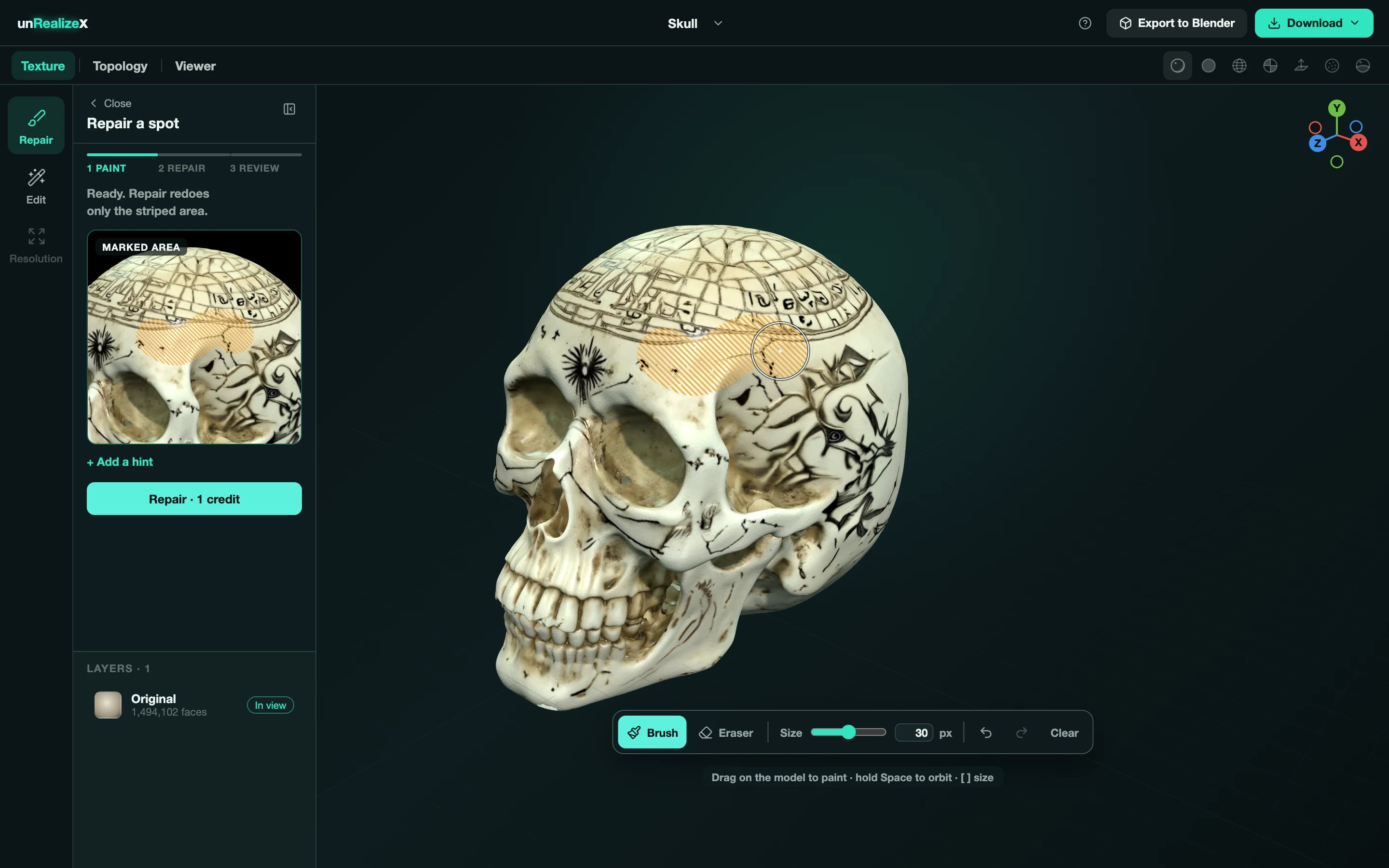 **+ Add a hint** lets you say what the spot should look like, for example *plain bone, no lines*.
The panel shows **Sending**, **Preparing**, **Repainting**, **Checking**. Usually 30 to 60 seconds.
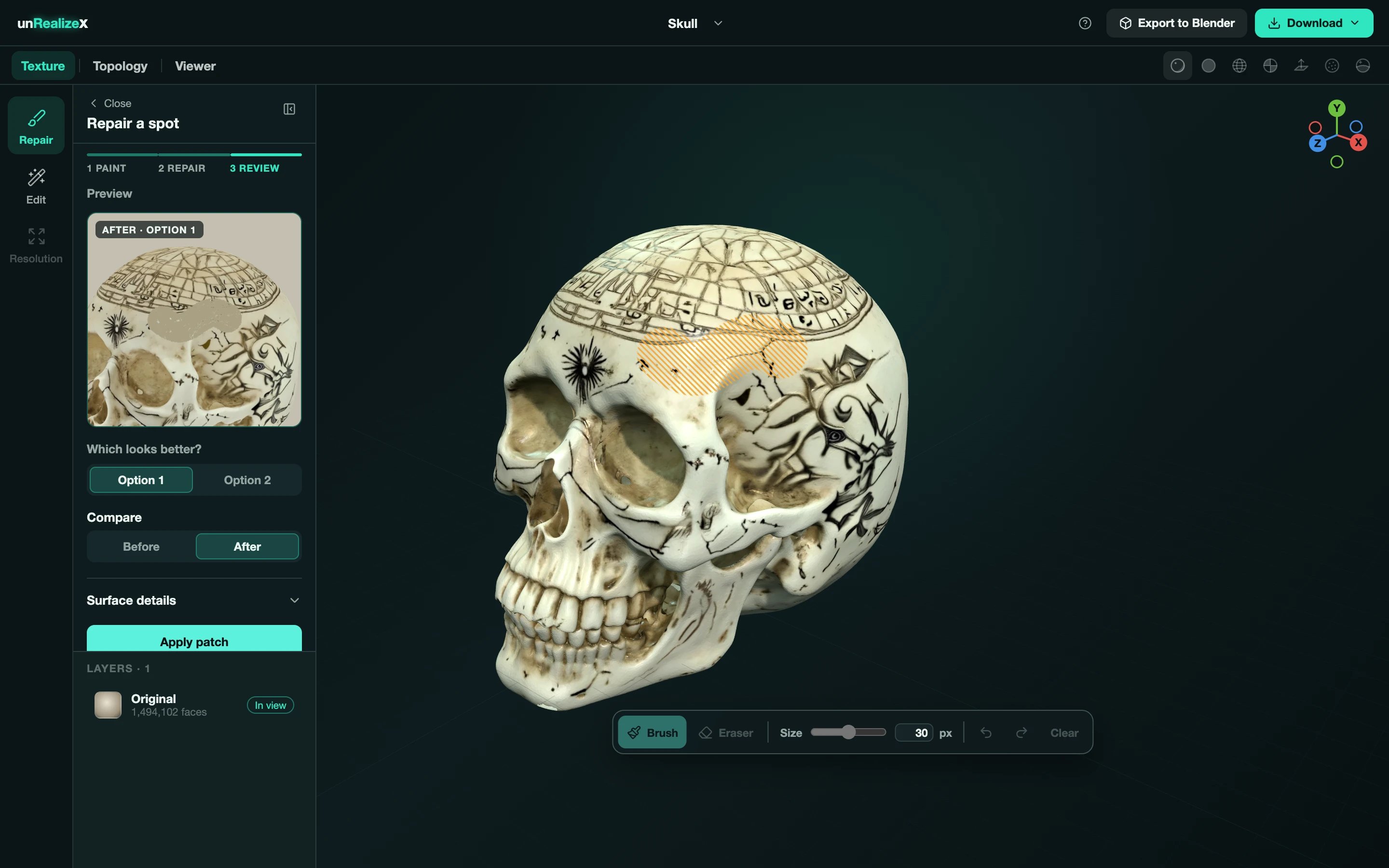
Two results come back. Pick **Option 1** or **Option 2**, flip **Before** and **After**, then **Apply patch**. **Try another** runs it again; **Back to painting** changes the area.
**+ Add a hint** lets you say what the spot should look like, for example *plain bone, no lines*.
The panel shows **Sending**, **Preparing**, **Repainting**, **Checking**. Usually 30 to 60 seconds.
Two results come back. Pick **Option 1** or **Option 2**, flip **Before** and **After**, then **Apply patch**. **Try another** runs it again; **Back to painting** changes the area.
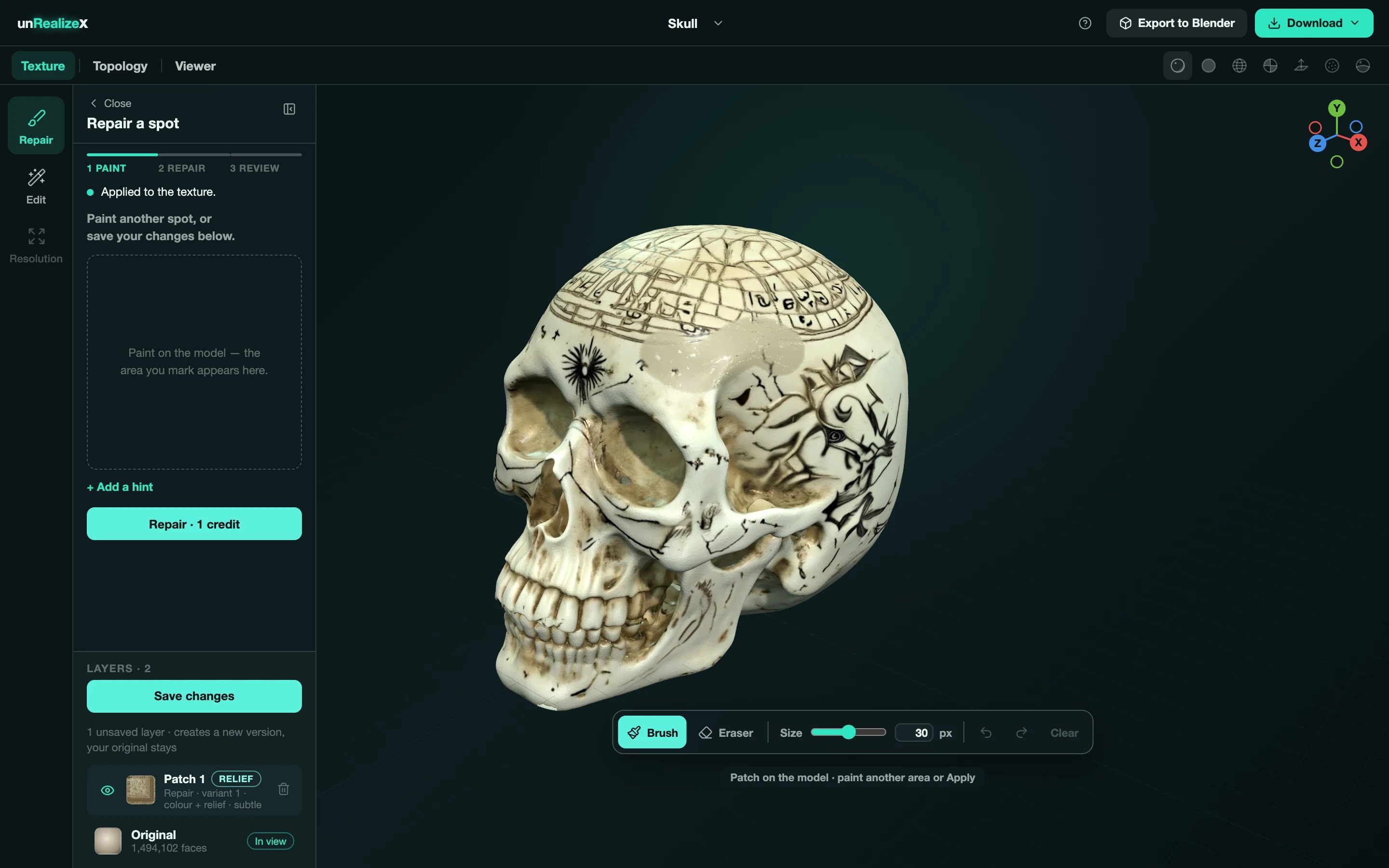
 Each applied patch is a layer. Paint another spot, or click **Save changes** to write a new version.
 Stripes that face away from the camera repair poorly. If the panel says so, orbit so the area faces you and paint again. Smaller areas also repair better than large ones.